How to solve the problem of slow output speed or software freeze or software crash?
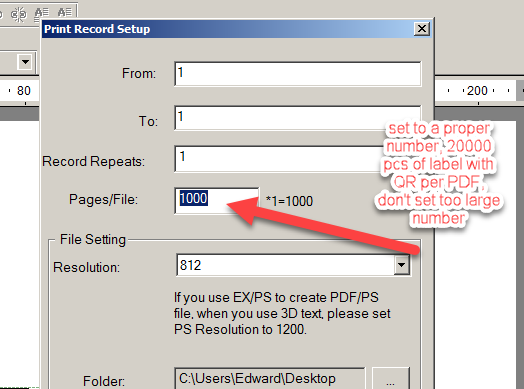
The setting for the number of grouped pages (Pages/File) is too large. Test the method by reducing it. Generally, a PDF containing 20,000 QR codes is used as a reference. Specifically, you can check the CPU and memory usage during printing in the system's "Task Manager", especially the memory usage. If a process consumes 1-2GB of memory and continues to increase, it is clearly due to the setting of the number of grouped pages being too large.
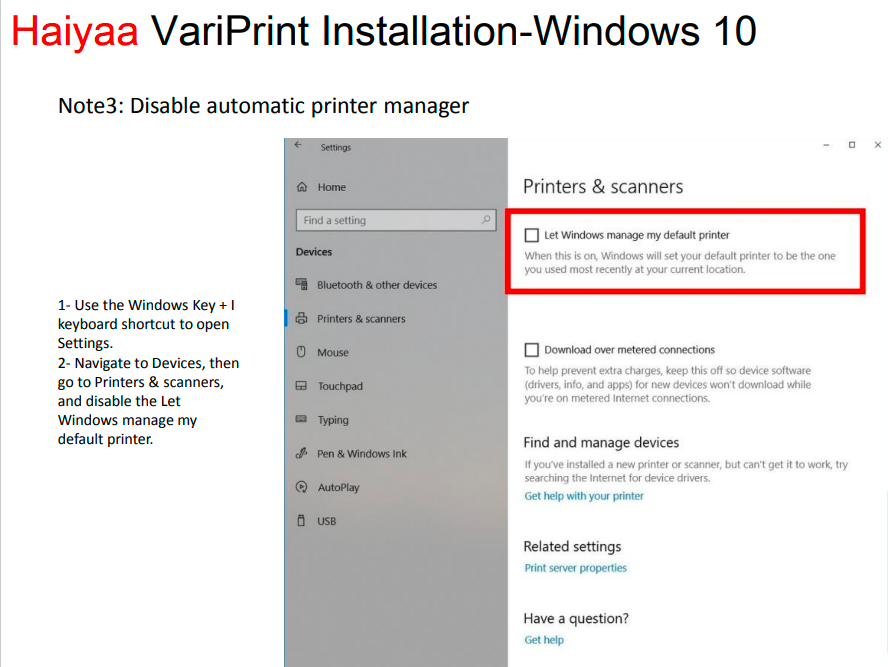
The HAIYAA print driver has been accidentally modified. Please go to the settings to check. Note: Do not tick "Let Windows manage my default printer", no tick!
The output speed of some files is related to whether the "PDF Handler" is set to "Built-in" or "Acrobat". However, this situation rarely occurs, so you can try switching it. The method is to go to "System Property Settings" -- "PDF Handler". By default, "Built-in" is selected, and the output speed is generally faster. Here is a prerequisite: if you choose Acrobat, you must have the full version of Acrobat (including Acrobat Distiller) installed on your computer, otherwise an error will be reported.
It can be output, but very slowly. Another reason is that the QR content characters are too long. In this case, use the spot color channel setting to handle it. The method is to first select "True" for the "Fill Overprint" of the QR, and then change it back to "False".
Another reason for slow output is due to design issues with variable field settings. Check whether the text output in the job has been converted to outline, or whether it was originally single black and has now been changed to CMYK four-color. Output a few pages to check. If so, improve the file settings. Variable text is generally not converted to outline during output, unless specifically designed. Converting to outline will increase the file size and slow down the output speed accordingly. This situation can be resolved by reducing the number of grouped pages.
Another reason for output failure is that the VariPrint installation file may be blocked by antivirus software. Check if your computer has installed antivirus software, and see if the VPExtend.exe or other dll files in the VariPrint installation folder are still present and not blocked. If they are blocked, the program will freeze during output, regardless of how many pages are being printed. Therefore, try printing one page to see if the output works. If even one page cannot be printed, check the trust zone of the antivirus software. If such a situation exists, restore the trust for these files. Different versions of antivirus software have different trust settings, so you need to investigate and handle it yourself.
When there are dot matrix codes (code images composed of small black dots) in the assignment, please appropriately reduce the group pages setting, as the dot matrix code images will occupy a significant amount of time and capacity in the signed PDF. Additionally, due to the diverse formats and color modes of dot matrix code images provided by suppliers, it is necessary to select "Image Properties" - "Print Color Mode" to speed up the process while ensuring that the output is monochrome. The size and capacity of dot matrix codes vary, so it is important to test and find a suitable balance for the grouped pages" setting.
Re-install VariPrint software.