
If you want to run VariPrint as an administrator every time and New a project by import the PDF file as the template. please give Acrobat the setting that Run this program as an administrator.
See attached properties setting screen capture for your reference.
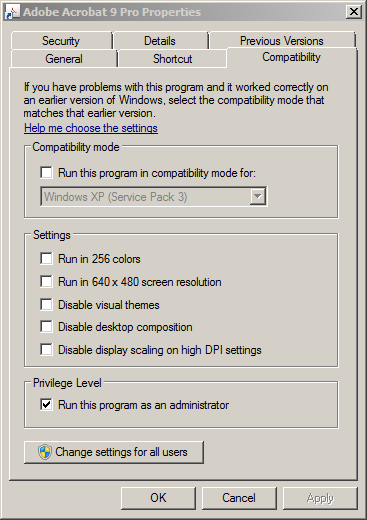
After this setting. you can double click to open the PDF file after run VariPrint as administrator.
Vice versa, if you have given Acrobat the setting that Run this program as an administrator, you should run VariPrint as an administrator every time. Otherwise, there will be an error happening when New a project by import the PDF file as the template.
Actually we suggest at the first time you run VariPrint as an administrator to do some registration. After you just use double click to run VariPrint instead of Run it as an administrator, in this case you don't need to give Acrobat the setting that Run this program as an administrator.
Solution for Unable to Double-Click and Open PDF Files While VariPrint is Running
Source: Haiyaa BBS - VariPrint Forum
Author: edward
Published: 2019-04-03 13:26:12
Views: 126
Problem Description
A customer reported that PDF files cannot be opened by double-clicking while VariPrint is running.
Cause
This is a permission issue. After outputting a PDF, the backend does not close the Acrobat process in a timely manner, which prevents PDF files from being opened by double-clicking. In Task Manager, many Acrobat processes can be seen in the process list.
Solutions
1) Launch VariPrint as a Standard User
Start VariPrint with a regular user account instead of running it as an administrator.
2) Use the "Built-in" PDF Handler
Set the PDF handler to "Built-in" instead of using "Acrobat" for print output PDF.
Steps:
Open the System Properties Setup window in VariPrint
Go to the Other's Setting tab
Locate the PDF Handler dropdown
Select Built-in
Click OK to save
(Screenshot reference: System setup dialog showing PDF Handler set to "Built-in")
3) Configure Acrobat Compatibility Settings
Set Acrobat to run as administrator:
Right-click on Acrobat.exe
Select Properties
Go to the Compatibility tab
Check the box for Run this program as an administrator
Click OK to save
(Screenshot reference: Acrobat.exe Properties > Compatibility tab with "Run as administrator" checked)
4) Install VariPrint to the Program Files (x86) Directory
Install VariPrint under the C:\Program Files (x86) directory.